
Using Friday Force · Section 3 of 8
Publishing and the calendar
Connect a channel, schedule or publish a post, see what each post status means, find every post on the Content Calendar, move or stop a scheduled post, post an Instagram Story, and reconnect a channel whose sign-in has expired.
Topics
Connect a channel
Part of Get started: Connect your channels and publish
- Go to Connections.
- Press Connect next to a channel and sign in to that platform. Use an account that has admin rights to the page or profile.
- Allow all the permissions it asks for. If you decline some, publishing or analytics may not work.
- Back in Friday Force, check that the channel shows as connected.
Anyone in your workspace can connect a channel. Only Owners and Admins can disconnect an account that someone else connected. Instagram needs a Business or Creator account. See what each channel needs.
Schedule a post
Part of Get started: Connect your channels and publish
- Open the post and press Plan Schedule.
- Pick a time. Smart Times shows a weekly map of good times to post on that platform, with ★ on the top 3. Or choose Custom Time. The calendar on the right shows what’s already scheduled, so posts don’t clash.
- Press Plan Schedule. The post is now Planned.
- Press Confirm Schedule. The post is now Scheduled and goes out automatically at that time. If your workspace uses approvals and you’re not an approver, you’ll see Submit for Review instead.
Smart Times starts with general patterns for your industry. Once you’ve published 30 or more posts, it learns from your own audience.
A Planned post is never sent until you press Confirm Schedule. To move, cancel or check a post later, see Move, cancel or delete a post.
Publish now
Part of Get started: Connect your channels and publish
To post straight away, open the post and press Publish. More options are under the arrow next to it. Run the Before you publish checklist first. If your workspace uses approvals and you’re not an approver, you can only schedule posts for review.
What each post status means
The status tells you whether a post will go out.
| Status | What it means | Will it go out? |
|---|---|---|
| Draft | Made, but no date | No |
| Generating | The team is still making it (campaign posts) | No |
| Planned | Has a date you haven’t confirmed | No, not until you press Confirm Schedule |
| Pending Approval | Waiting for an approver | No, not until it’s approved |
| Rejected | An approver turned it down, with a reason | No |
| Scheduled | Confirmed for a date and time | Yes, within a few minutes of that time |
| Publishing | Being sent right now | Yes |
| Published | Live on the platform | Already out |
| Partial | Went out on some platforms but not others | Partly. Fix it |
| Failed | It tried to go out, but didn’t | No. Fix it |
A Planned post will not be published until you press Confirm Schedule. If its date passes first, nothing happens: pick a new date, or the app says “Planned date is in the past. Please update the date before confirming.”
See everything on the Content Calendar
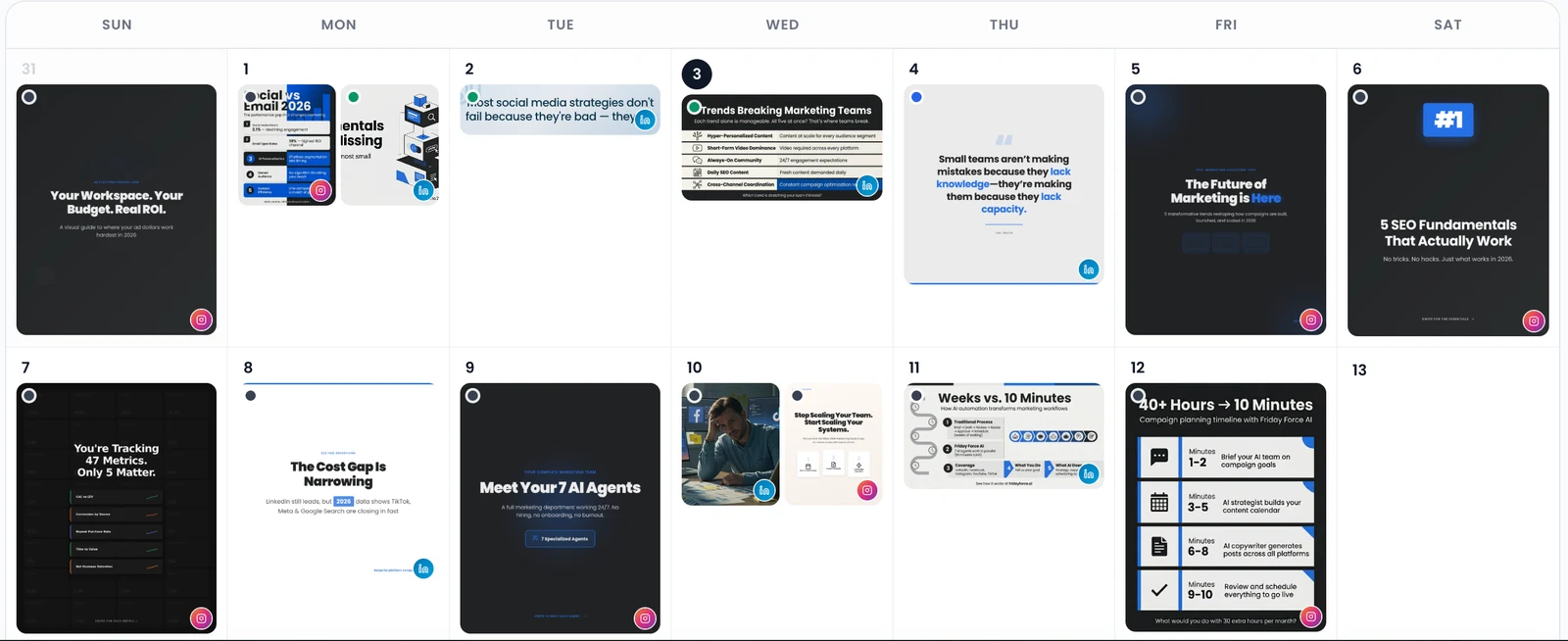
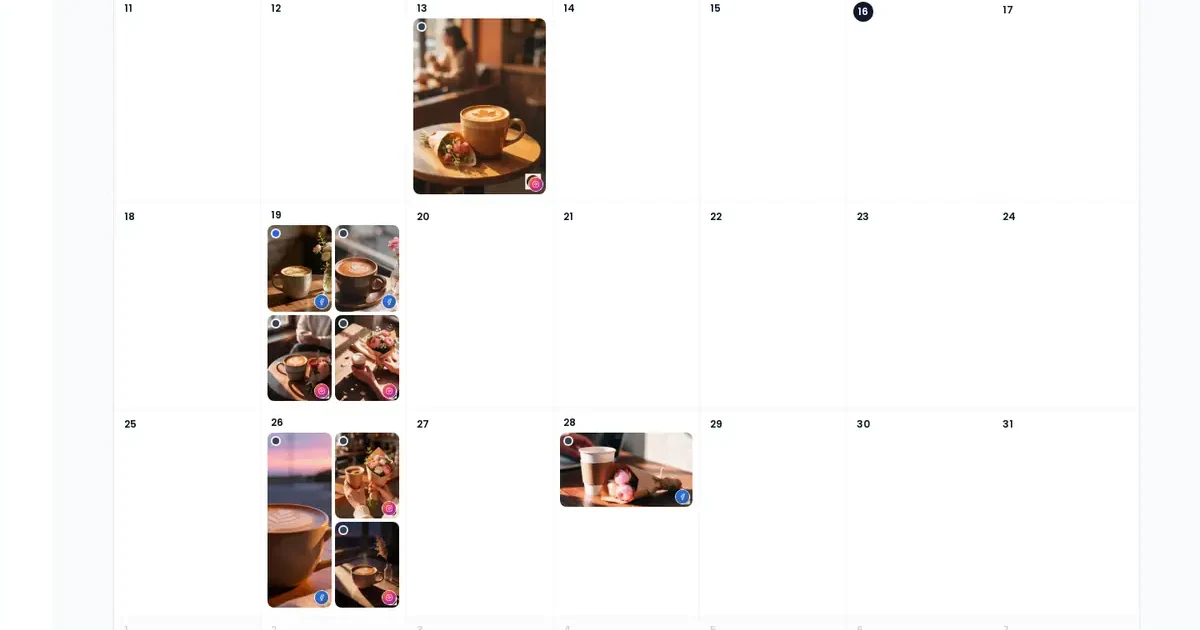
The Content Calendar shows your posts by date, with a picture of each. Switch between Mood Board, Timeline and Kanban views, filter by platform and status, and press Sync now to refresh.
Move, cancel or delete a post
- Move it: drag it to another day on the Content Calendar. A “Post rescheduled” message confirms it. This works for Draft, Planned, Scheduled and Failed posts. Or open a Planned post and press Edit Date.
- Stop a Scheduled post: open it and press Unschedule. It goes straight back to Draft, and you can plan it again.
- Delete it: you can delete drafts and scheduled posts. Published and Pending Approval posts can’t be deleted in Friday Force.
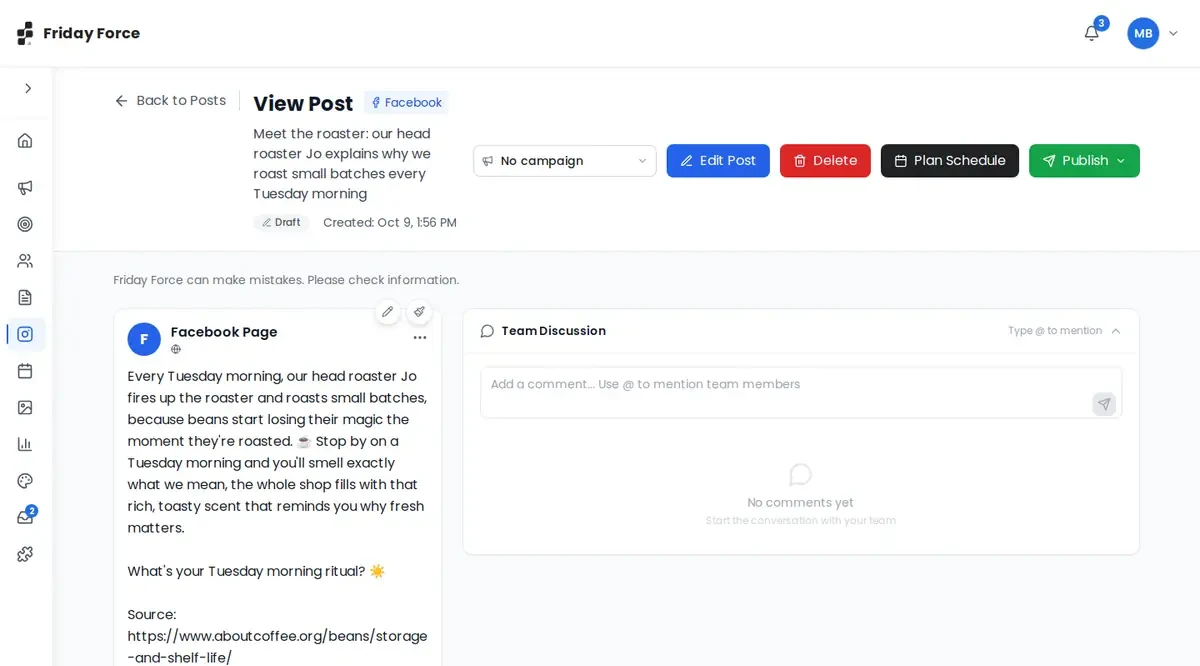
Deleting a post in Friday Force never removes it from the social platform. To take a published post down, delete it on Instagram, Facebook or the other platform itself.
Post an Instagram Story
You can create and publish Instagram Stories from Friday Force. Stories disappear after 24 hours, so they suit timely updates.
- Connect your Instagram account first. It must be an Instagram Business or Creator account. Go to Connections and allow access.
- Open the Social Media composer, choose Instagram as the platform and Story as the content type. A clock icon reminds you that Stories disappear after 24 hours.
- Upload an image or video. Use a vertical one, so it looks right on a phone.
- Publish it now, or schedule it. When you schedule, pick the date, time and timezone, and Friday Force posts it at that time.
- Check how it did. Story results (reach, impressions, replies, shares, exits and taps) are only available for 24 hours, while the Story is live.
What each channel needs
Part of Get started: Connect your channels and publish
Each platform has its own account rules.
| Channel | What you need |
|---|---|
| LinkedIn Personal | Your own LinkedIn profile |
| LinkedIn Business | A LinkedIn company page you’re an admin of |
| An Instagram Business or Creator account (not a personal account) | |
| Facebook Pages | A Facebook Page you manage |
| YouTube | Your YouTube channel |
| TikTok | Your TikTok account |
| Google Ads (Business and above · Beta) | A Google Ads account. Other plans see “Upgrade required”. |
| Website | Your website, so you can publish blog posts from Friday Force |
Anyone in your workspace can connect a channel. Only Owners and Admins can disconnect an account someone else connected.
Reconnect an expired channel
A connection can expire, for example when you change your password on that platform or it asks you to sign in again. Friday Force checks every day and tells you in three places:
- On Connections: the account turns red and shows “Connection expired - please reconnect”.
- When you create a post: “Publishing will fail for expired connections”, with the account listed.
- On a post that tried to go out: Failed, with “Token expired for platforms: … Please reconnect.”
To fix it, press Reconnect on Connections and sign in with the same account. Then reschedule any posts that failed.
Screens were captured in October 2026 and may differ slightly from the current app. They show a made-up business, Bean & Bloom Coffee.
Still stuck? Ask the support team.