
Using Friday Force · Section 1 of 8
Find your way around
Use the menu on the left to reach every part of Friday Force. The Dashboard is home: chat with Elena, follow a short checklist, see your numbers and what is coming up. The bell shows what your team is working on.
Topics
The Dashboard
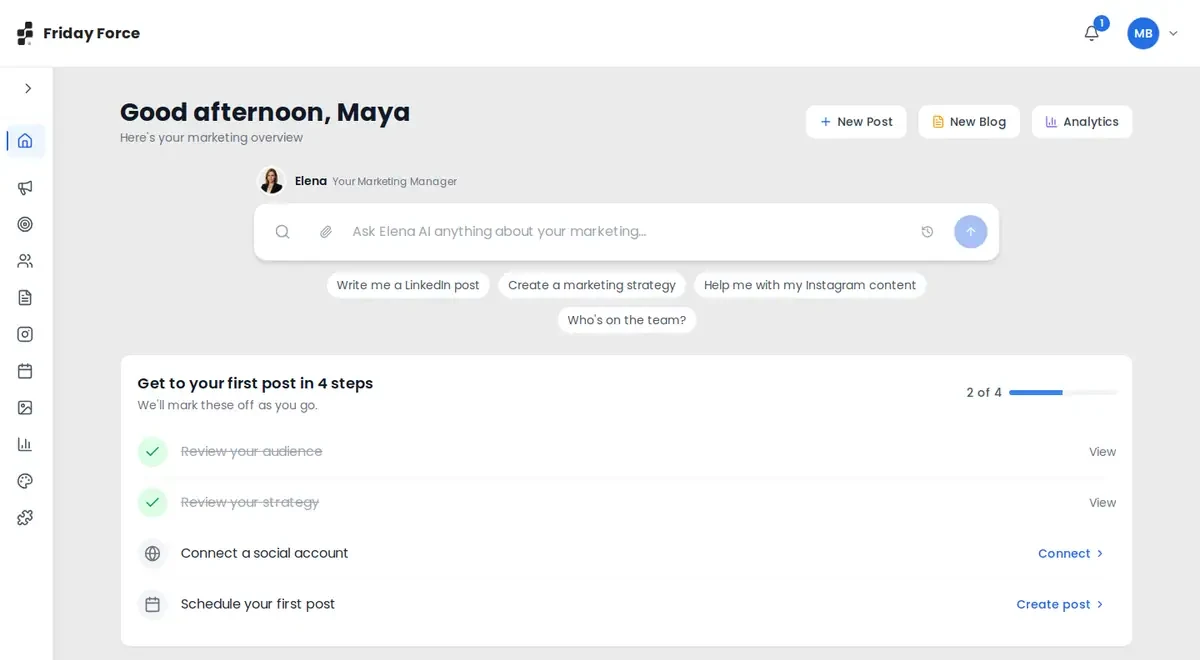
The Dashboard shows what needs your attention first.
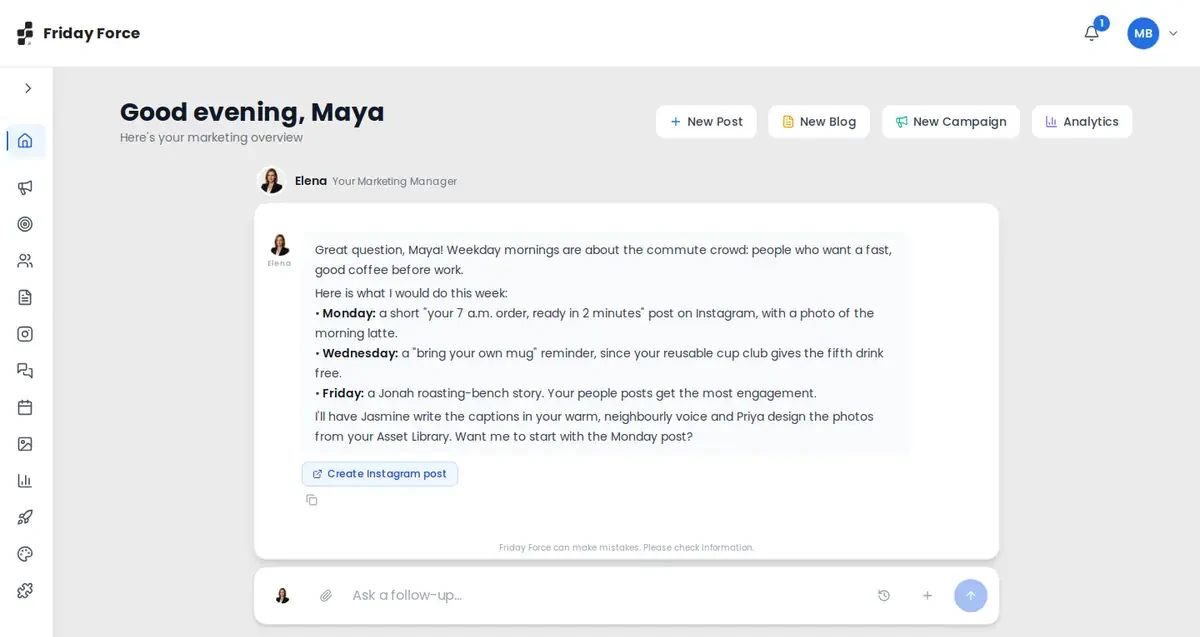
- Ask Elena: type a question or request, like “What should I post this week to get more weekday morning visitors?” She answers with a short plan (which platforms, and who on the team does what) and buttons to act on it, such as Create Instagram Post. Use the paperclip to attach files and the clock icon to reopen past chats.
- Quick buttons: New Post, New Blog and Analytics.
- Get to your first post in 4 steps: a short checklist that ticks itself off as you go.
- Your numbers: posts this month, engagement rate, and posts scheduled for the next 7 days.
- Content Pipeline: your posts by status. Check Failed here for posts that need you.
- Upcoming Schedule: the next 7 days.
Follow your team’s work
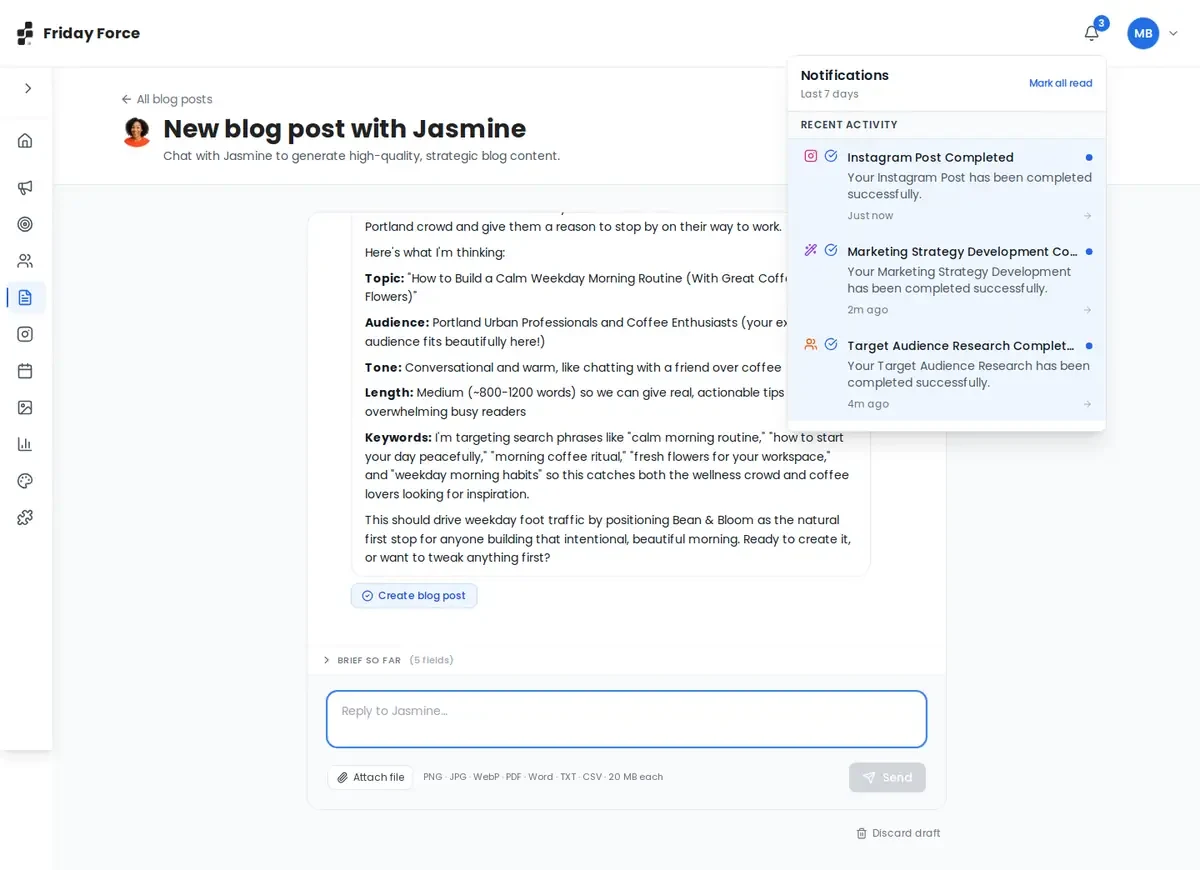
To see what your team is doing, click the bell at the top right. Active workflows shows work in progress, with a progress bar. Recent activity lists finished work, like “Instagram Post Completed”. Click an item to open it. Mark all read clears the blue dots.
Find unfinished work
- Posts: open Social Media and filter by Draft or Planned, or use the Content Pipeline on the Dashboard. Campaign posts waiting for you are under Review posts in each campaign.
- Campaigns: the Campaigns list shows each campaign’s status, for example Draft.
- Blogs: Blog Posts shows each article’s status.
Set up your profile and Brand Kit
Part of Get started: Your company profile
Covered in Get started: Confirm your company profile and Build and check your Brand Kit. Come back here for the menu and where each kind of information goes.
Where each kind of information goes
Part of Get started: Your company profile
Put information in the right place and your team uses it in every post.
| Information | Where to put it |
|---|---|
| Company facts | Organization Details: press Edit Organization, or chat with Elena |
| Background documents | Organization Details → Documents. Priya, Elena and Omar read these. |
| Logo, colours, fonts, voice | Brand Kit |
| Rules, disclaimers, banned claims | Brand Kit → Design & copy guidelines |
| Real photos (products, storefront, team, logo) | Brand Kit → Asset library. For one campaign, you can also attach them in the chat with Elena. |
| Facts for one campaign | Attach them in the campaign chat with Elena. |
If our team set up your workspace
Part of Get started: Your company profile
Sometimes Forcivate prepares part of your marketing before you sign up: a company profile, a Brand Kit, an audience or a first campaign. If that’s you:
- Sign up as usual and create your own workspace.
- Tell your Forcivate contact once you’ve signed up. We’ll copy the work we prepared into your workspace.
- Check everything we prepared. We built it from public information and our conversations with you, and you know your business best.
- Carry on from where it is. If a campaign is ready, go straight to reviewing it. You don’t need to start again.
Screens were captured in October 2026 and may differ slightly from the current app. They show a made-up business, Bean & Bloom Coffee.
Still stuck? Ask the support team.