
Your first campaign · Chapter 6 of 7
Connect your channels and publish
Connect each channel you’ll post to, then schedule your posts. A post goes out only after you press Confirm Schedule. Until then it is Planned and is never sent.
Topics
Your channels connected and your first posts scheduled.
Connect a channel
Go to Connections, press Connect next to each channel you’ll post to, sign in with an account that has admin rights, and allow every permission it asks for. Then check that the channel shows as connected. Instagram needs a Business or Creator account.
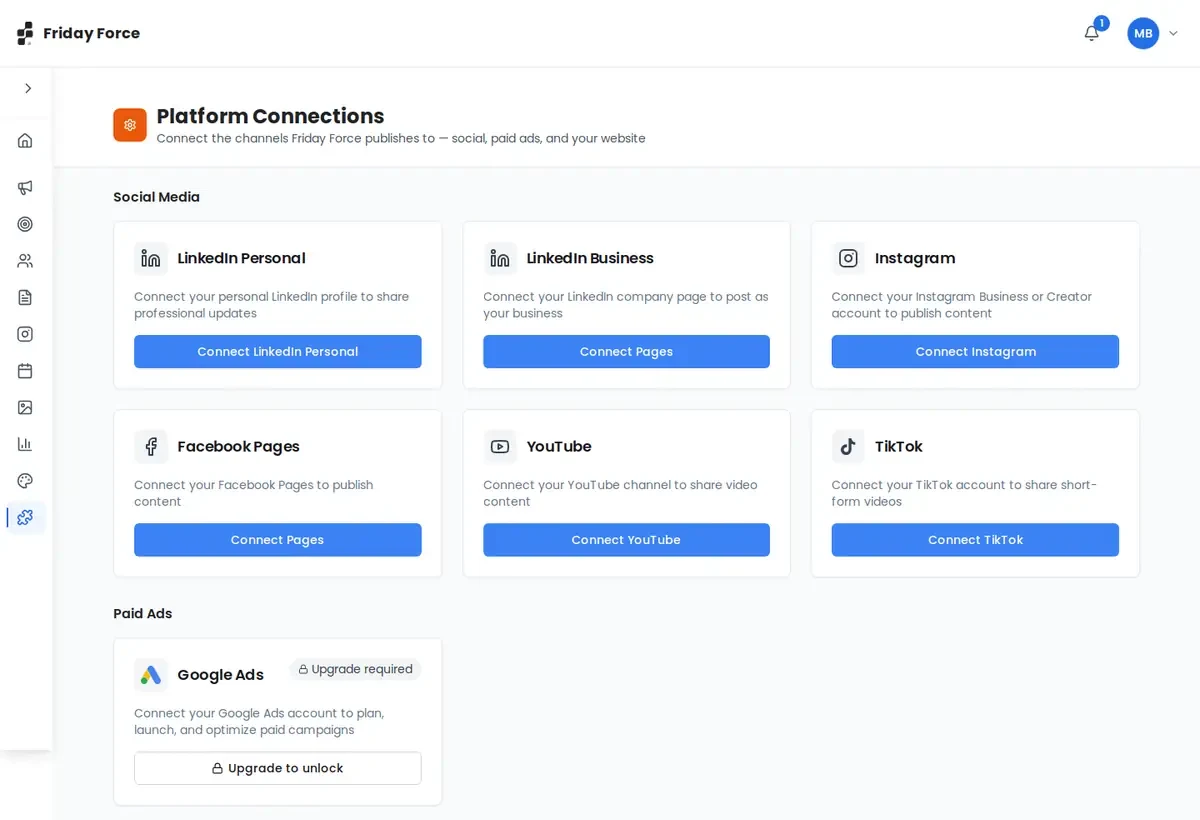
Need the full steps and what each channel needs? See Connect a channel.
Schedule a post
Open a post and press Plan Schedule. Pick a Smart Time or a custom time, then press Confirm Schedule. Only then is the post Scheduled and sent automatically.
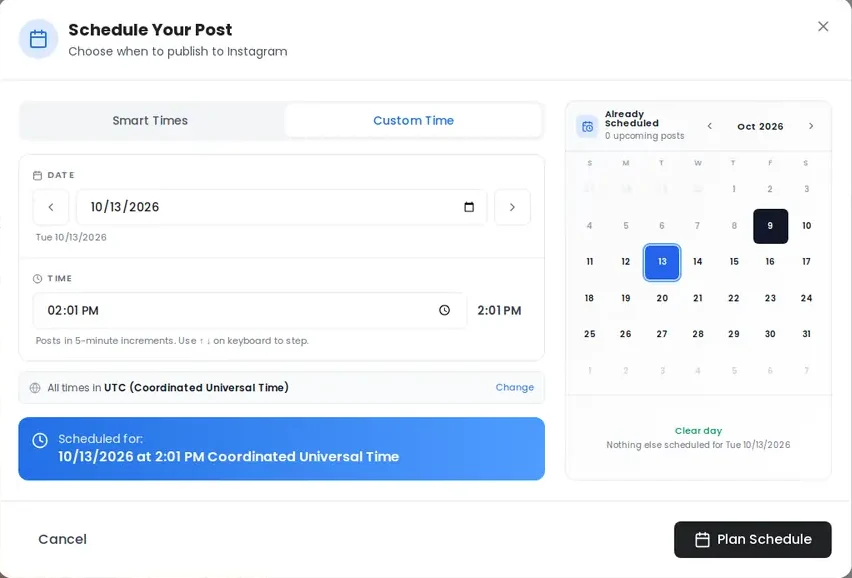
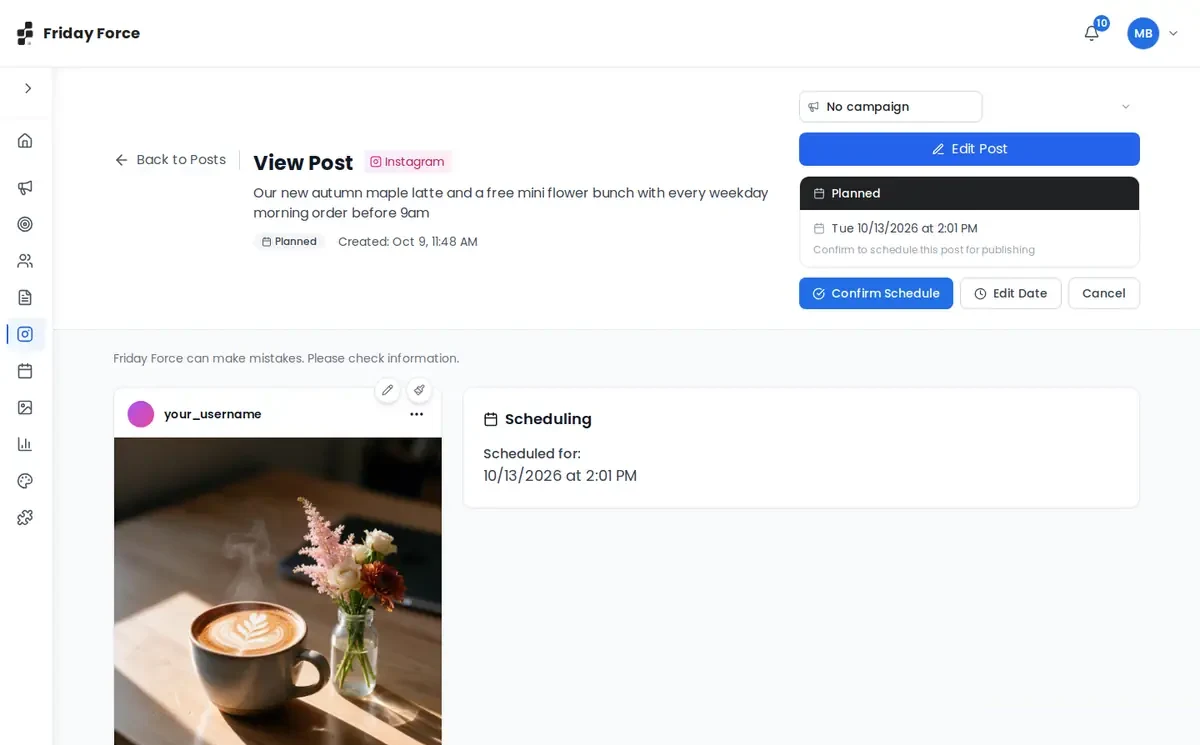
A Planned post is never sent until you press Confirm Schedule.
Need the full steps? See Schedule a post. To move or cancel a post later, see Move, cancel or delete a post.
Publish now
To post straight away, open the post and press Publish. Run the checklist first. The steps are in Publish now.
Each channel shows as connected, and your posts show as Scheduled.
Screens were captured in October 2026 and may differ slightly from the current app. They show a made-up business, Bean & Bloom Coffee.
Still stuck? Ask the support team.