
Using Friday Force · Section 2 of 8
Posts, blogs and creative
To make a post or a blog, tell your team what you want, then check what comes back. To change something, fix only the part that is wrong: ask Jasmine for the words, Priya for the image, or edit by hand for free.
Topics
Make a social post with AI
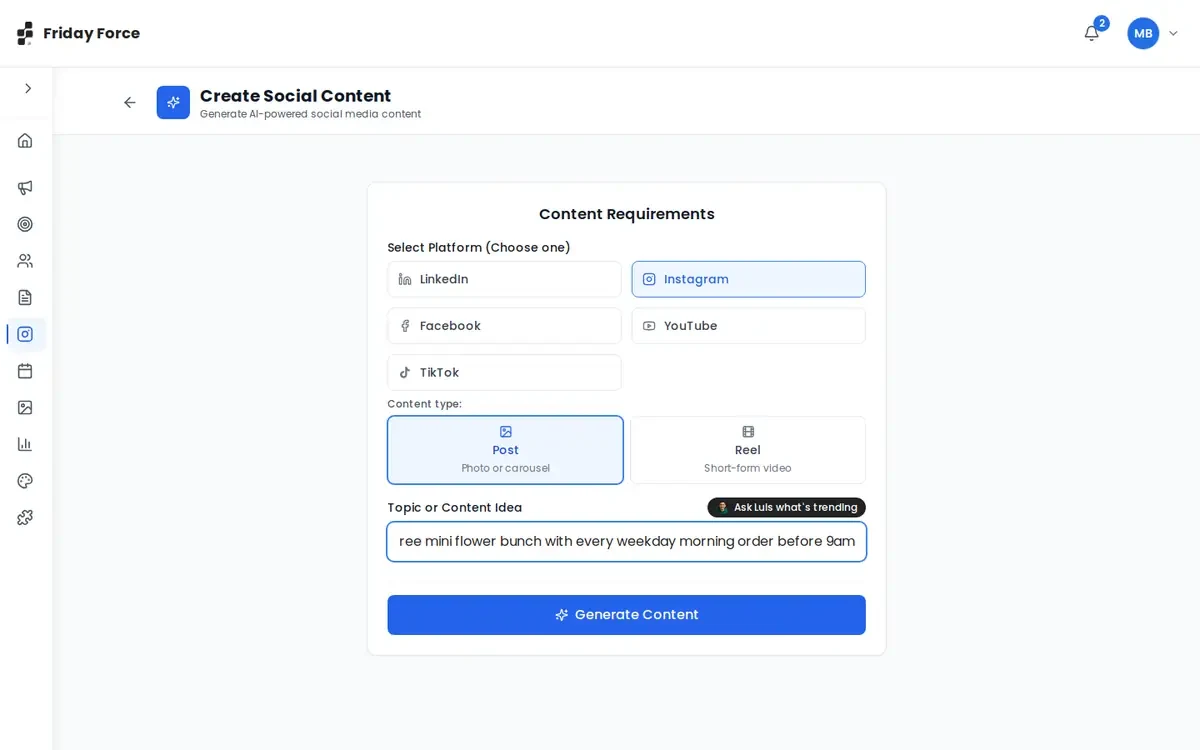
- Go to Social Media and press Create with AI.
- Pick one platform (LinkedIn, Instagram, Facebook, YouTube or TikTok) and a format. For Instagram, that’s a Post (photo or carousel) or a Reel.
- Describe your idea, with the facts it needs. Short of ideas? Press Ask Luis what’s trending, and he suggests about 5 based on your business and the platform. Picking one replaces what you typed, so pick his idea first, then add your own details in the topic box.
- Press Generate Content. The AI Team Working box shows progress. The work runs on our servers, so you can close the box or leave the page. The bell tells you when the post is ready.
Review the post
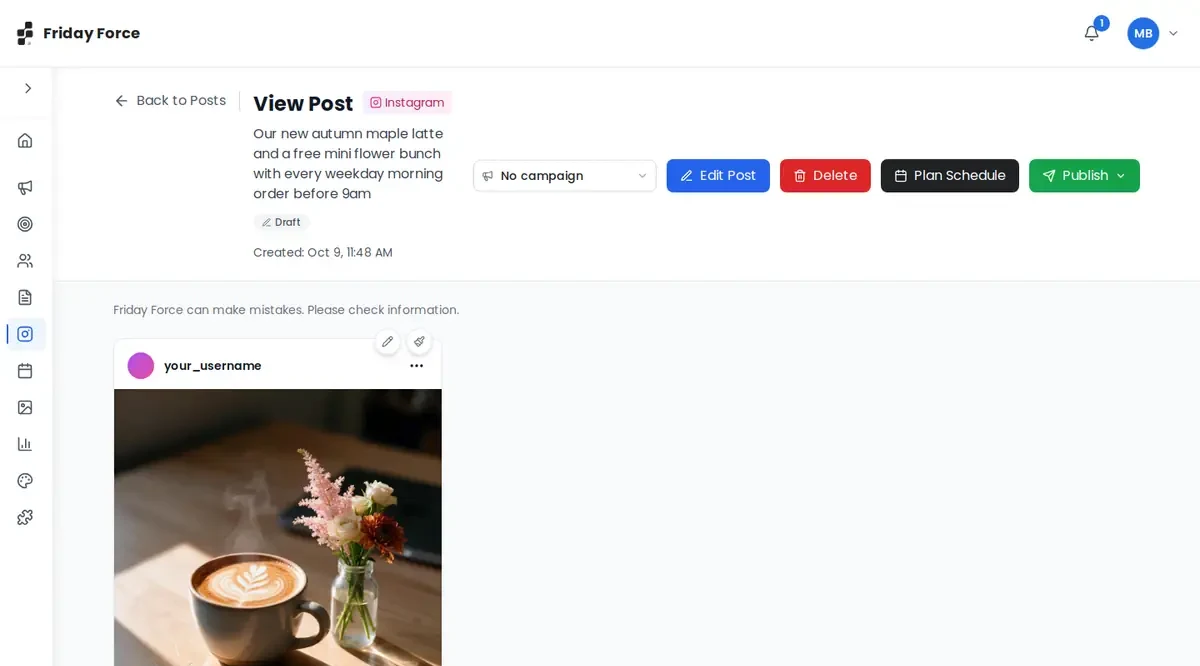
The post opens as a preview of how it will look on the platform. Check the caption, facts, hashtags and link, and that it sounds like you. Then edit it, add it to a campaign, schedule it or publish it.
To have Jasmine rewrite the words or Priya change the image, press Consult your team at the bottom right.
Add an image or videoVideo: Pro 5x and up
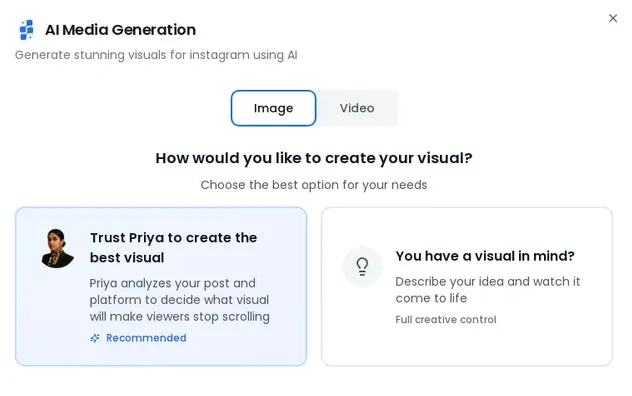
In the post’s image area, choose AI Generate or Upload Media. AI Generate makes an image or a video, and you pick how:
- Trust Priya to create the best visual: she reads your post and designs the visual.
- You have a visual in mind? Describe it yourself.
When it’s ready, press Crop to trim it or Manage to see the media.
Videos start on the Pro 5x plan. A video can run up to 30 seconds. Videos take longer and use more credits than images.
For posts about your real products, premises or people, Upload Media with your own photos is usually the safest choice.
Who to ask to change what
Part of Get started: Direct your AI team
To fix a post, change only the piece that’s wrong. You keep what’s already good. Editing by hand is free; asking a specialist uses credits.
| You want to change… | Do this |
|---|---|
| A whole campaign’s direction | Tell Elena in the campaign chat (offer, dates, channels, rhythm), or press Rebuild on the draft plan |
| One campaign post | In Review posts: Edit, Regenerate copy or Regenerate visual. Or mention @Jasmine in the campaign chat. |
| A caption | Press Edit Post and change it yourself, or use Consult your team → Jasmine. Revert undoes her change. |
| An image | Consult your team → Priya, or Upload Media with your own photo |
| A blog post | Edit the text directly, or chat with Jasmine (text) or Priya (images) on the blog |
| When a post goes out | Drag it on the Content Calendar, or use Edit Date or Plan Schedule on the post |
| Audience or strategy | Chat with Omar, or press Edit on the audience |
| Company facts | Ask Elena, or press Edit Organization |
See what things cost.
Ask the team to change a post
Part of Get started: Create your first campaign
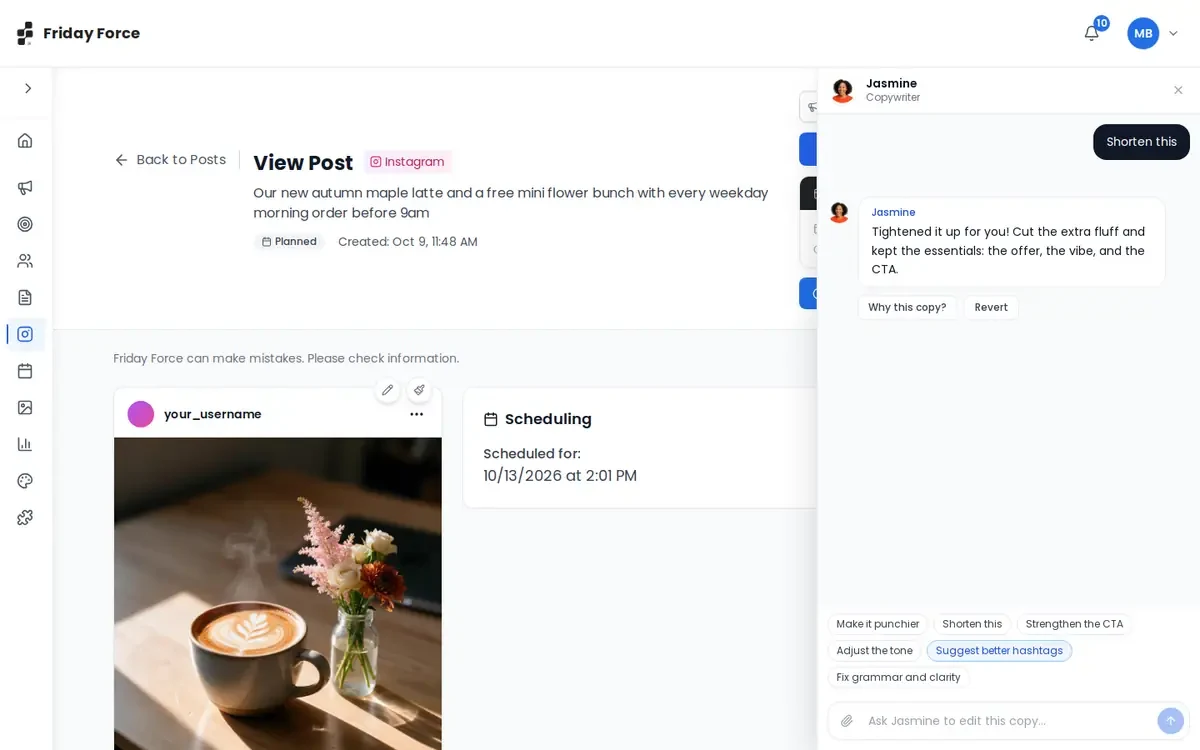
To change a post without editing it yourself, press Consult your team at the bottom right of any post and pick who to ask. (Edit Post is always there if you’d rather do it by hand.)
- Jasmine, Copywriter: tap a request (Make it punchier, Shorten this, Strengthen the CTA, Adjust the tone, Suggest better hashtags or Fix grammar and clarity) or type your own. She rewrites the caption on the post and tells you what she changed. Why this copy? explains her choices, and Revert puts the previous text back.
- Priya, Brand Designer: tap Make it brighter, Try a different style, Generate a new version, Add more contrast, Simplify the background or Match my brand colors, or describe your own idea. She explains her plan, then the new image replaces the old one. Every version stays at the top of her panel, so you can go back.
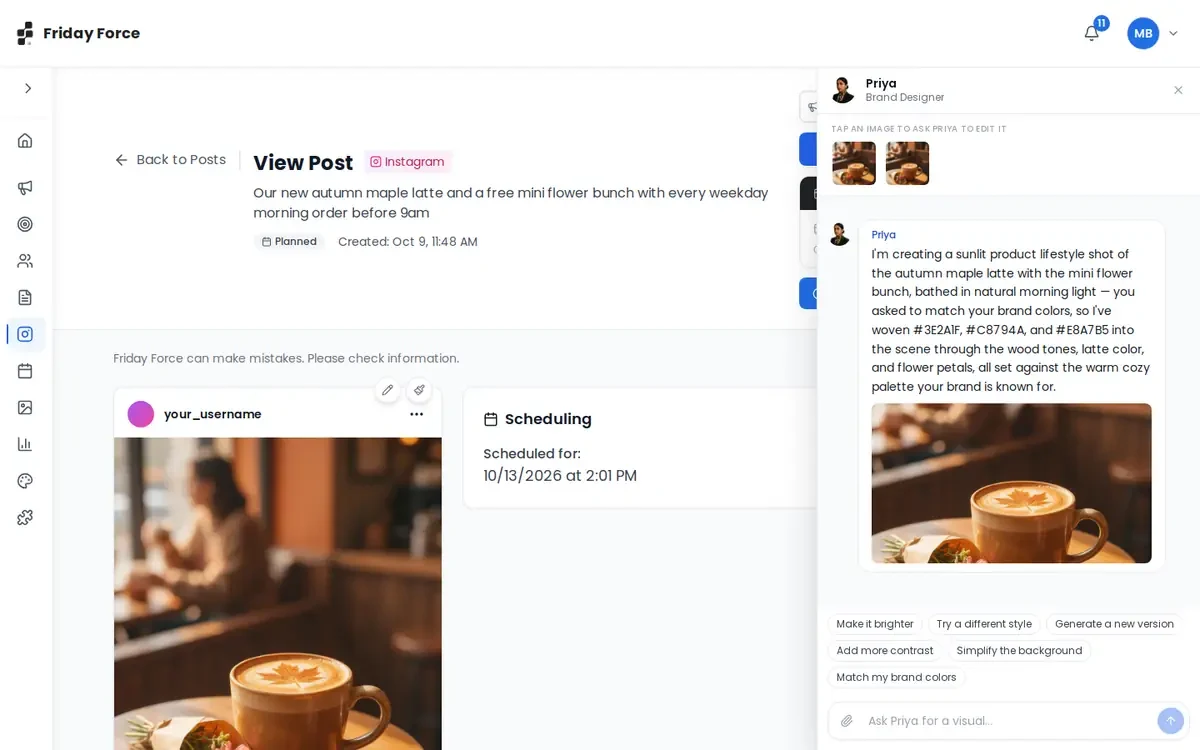
Each message to a specialist uses a small amount of credits, and an edited image costs the same as a new one. See what things cost.
Create a campaign
Part of Get started: Create your first campaign
A campaign is a full promotion, like a launch, a sale or an event. Covered in Get started: Create your first campaign. It walks through planning with Elena, checking the draft plan, creating the posts, and approving each one.
Write a post yourself
To write a post without AI, choose Manual Post, pick a platform and write your text under Post Content. Press Next to add media and schedule it like any other post.
Write a blog post
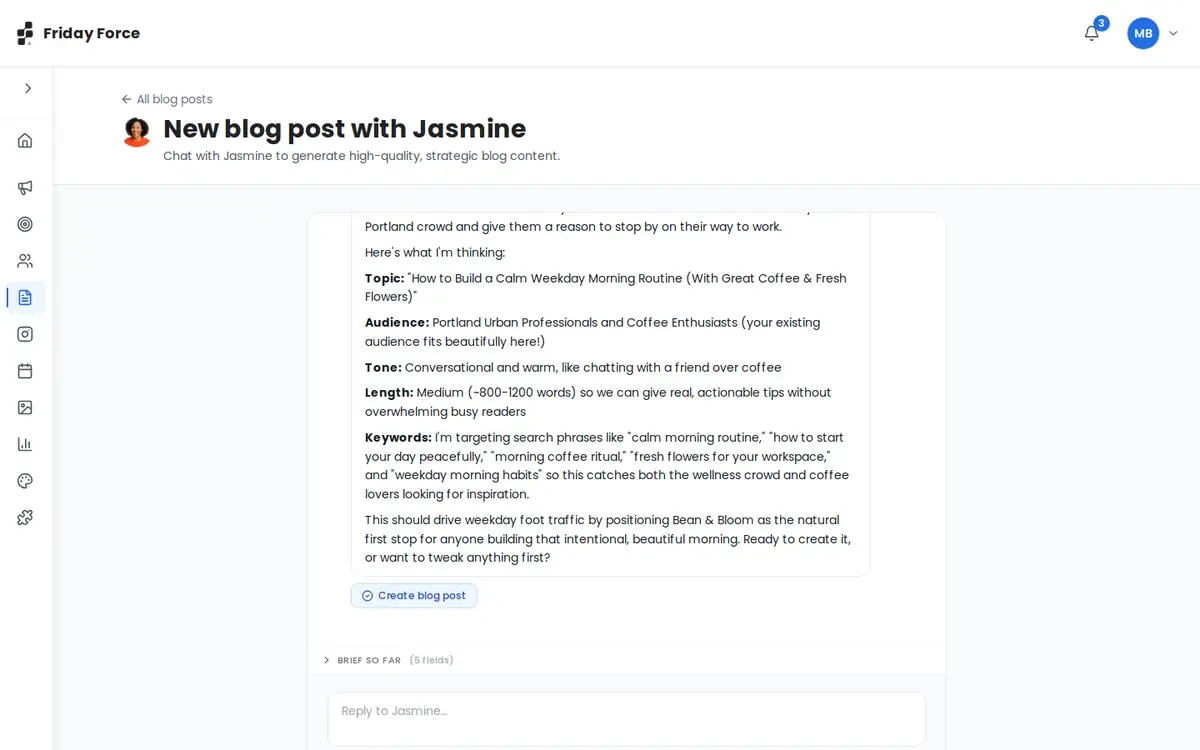
- Go to Blog Posts and press Create Post. Tell Jasmine your topic, or ask her for ideas. Attach briefs or research if you have them.
- Jasmine shows a plan: title, audience, tone, length and keywords. Reply to change anything.
- Press Create blog post. Jasmine writes it, and a cover image is made.
Check the facts in a blog
Blog posts are long, and AI can include facts, figures, quotes or sources that are wrong or made up. Before you publish:
- Every fact, number, date, price and claim about your business is right.
- Any statistic, study or source it mentions really exists. Remove it if you can’t confirm it.
- You’ve removed claims you can’t back up, especially about health, money or results.
- The SEO keywords are words your customers really search for.
- You’ve read the FAQ at the end. It’s easy to miss.
Edit and publish a blog
Open the post from Blog Posts. From there you can:
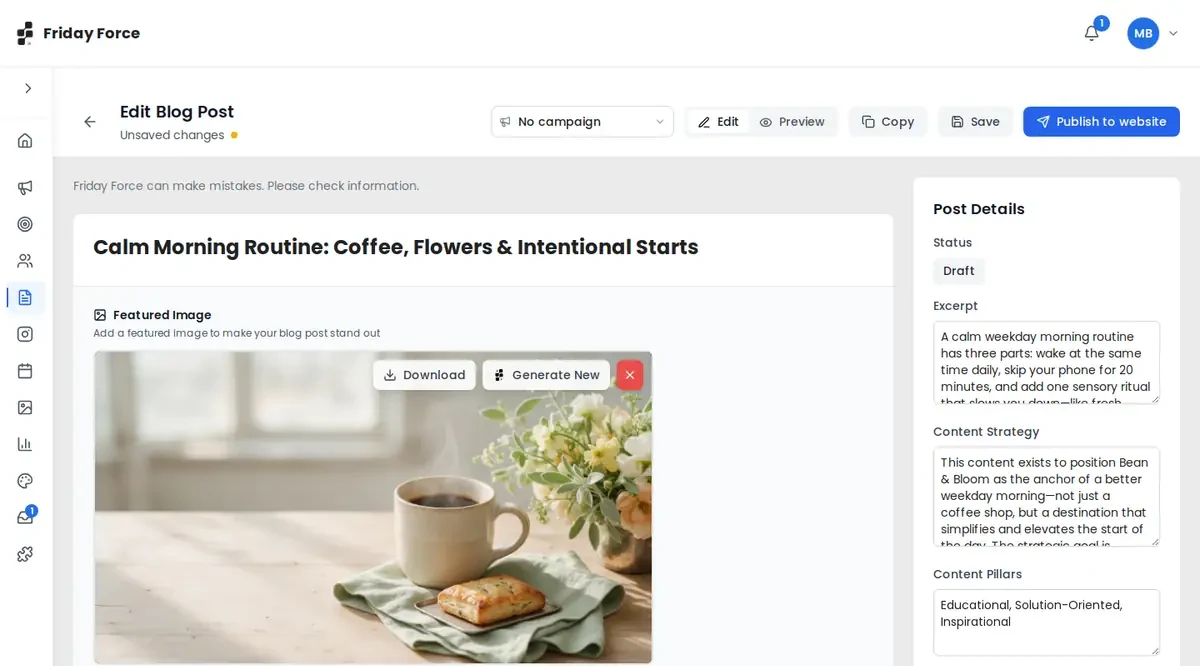
- Edit the text with the toolbar (bold, headings, lists, quotes, links and images), or chat with Jasmine to rewrite parts of it.
- Download the cover image, or press Generate New for a different one.
- Check the Post Details: excerpt, strategy, content pillars and SEO keywords.
- Press Preview, then Publish to website. Your website must be connected in Connections. Or press Copy and paste it into your website yourself.
Find your images and videos
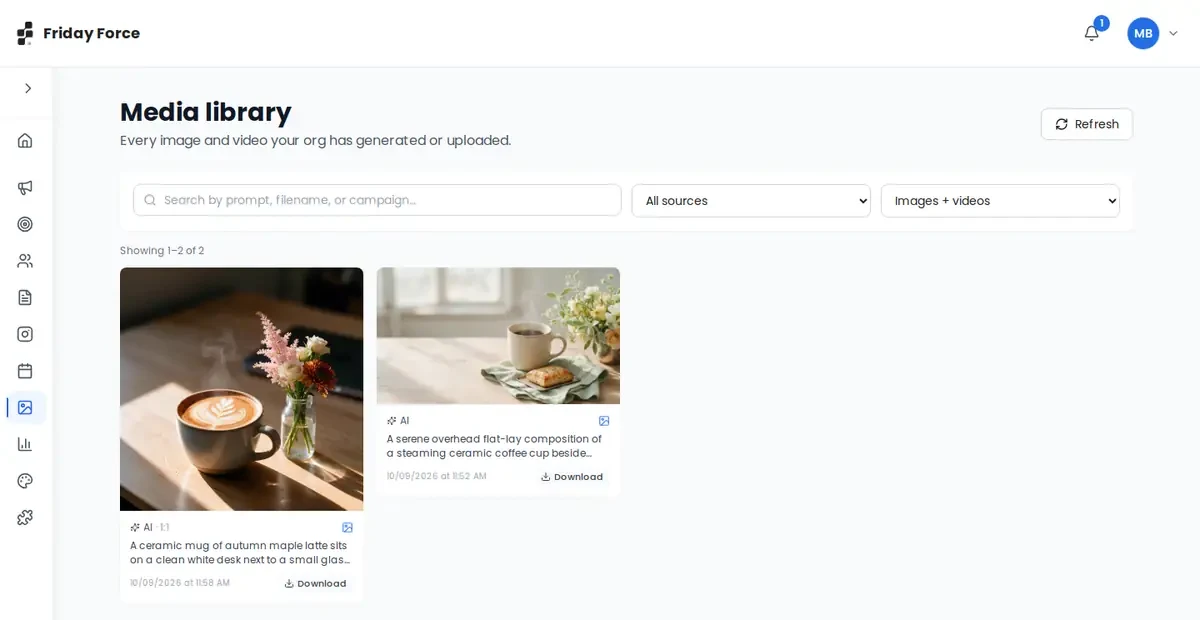
The Media Library holds every image and video your workspace has made or uploaded. You can filter by source (AI-generated or Uploaded) and by type.
Screens were captured in October 2026 and may differ slightly from the current app. They show a made-up business, Bean & Bloom Coffee.
Still stuck? Ask the support team.