
Your account · Section 6 of 8Business and above
Team, approvals and your account
On the Business plan you can invite your team, give each person a role, talk about posts next to the post, and have an approver sign off before posts go out. Your own account details are always in My Account.
Topics
Invite your teamBusiness and above
To add someone, go to Organization → Team Management and press Invite members. Enter their email and choose a role. They get an email with a link to join. You can change a role or remove someone at any time.
What extra users cost is on the pricing page. Extra users don’t add credits: the whole team shares one pool of 25,000 credits a month.
| Role | What they can do |
|---|---|
| Member | Create content, connect channels, schedule and publish (unless your workspace uses approvals) |
| Admin | Everything a Member can, plus manage members, settings, billing and credits, and disconnect anyone’s channels |
| Owner | Everything an Admin can. Owners are approvers by default, and can delete the workspace. |
| Client | Can’t publish or schedule |
Getting posts approvedBusiness and above
Part of Get started: Create your first campaign
If your workspace uses approvals, only approvers can publish directly. Everyone else sends posts for review, and an approver decides.
- Submit: plan the post as usual. Instead of Confirm Schedule you’ll see Planned — Requires Review. Press Submit for Review.
- Wait: the post becomes Pending Approval, with the message “Your post is awaiting Content Approver review.” To take it back, press Recall Approval.
- The approver is notified in Inbox → Approvals.
- The approver decides: they open the post (Pending Review) and press Approve, Reject or Edit Scheduled Date. Approved posts become Scheduled for their date. To reject, they write a reason and press Confirm Reject.
- If it’s rejected, the post becomes Rejected and shows Rejection Feedback: the reason and who reviewed it. Edit the post and press Resubmit.
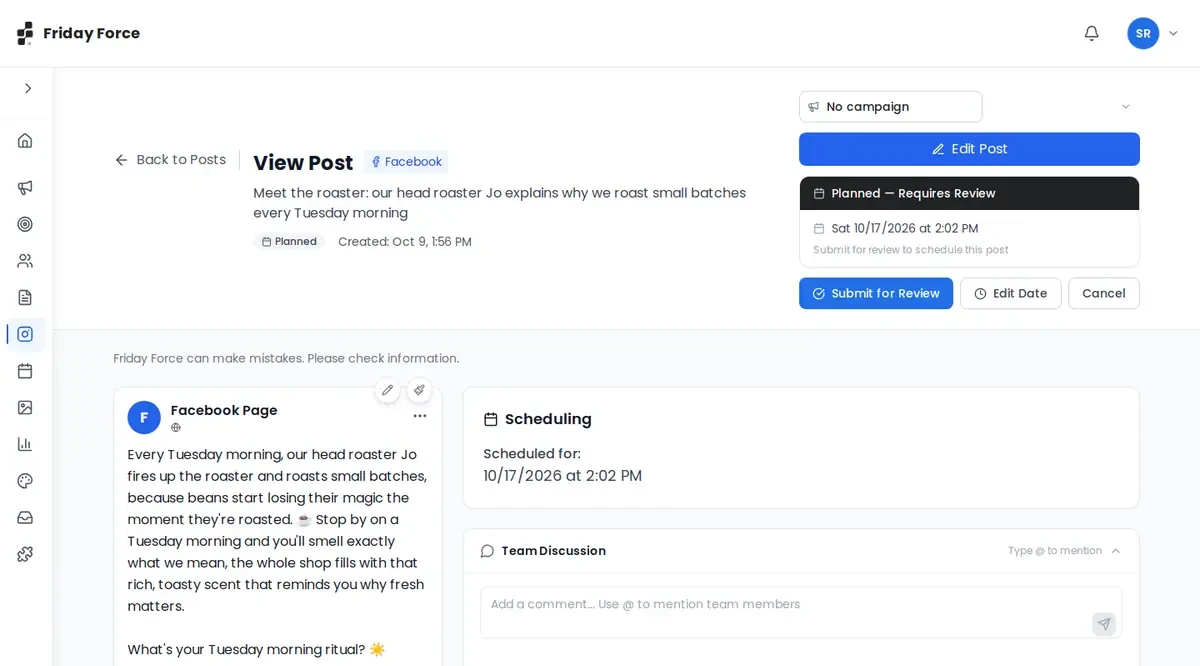
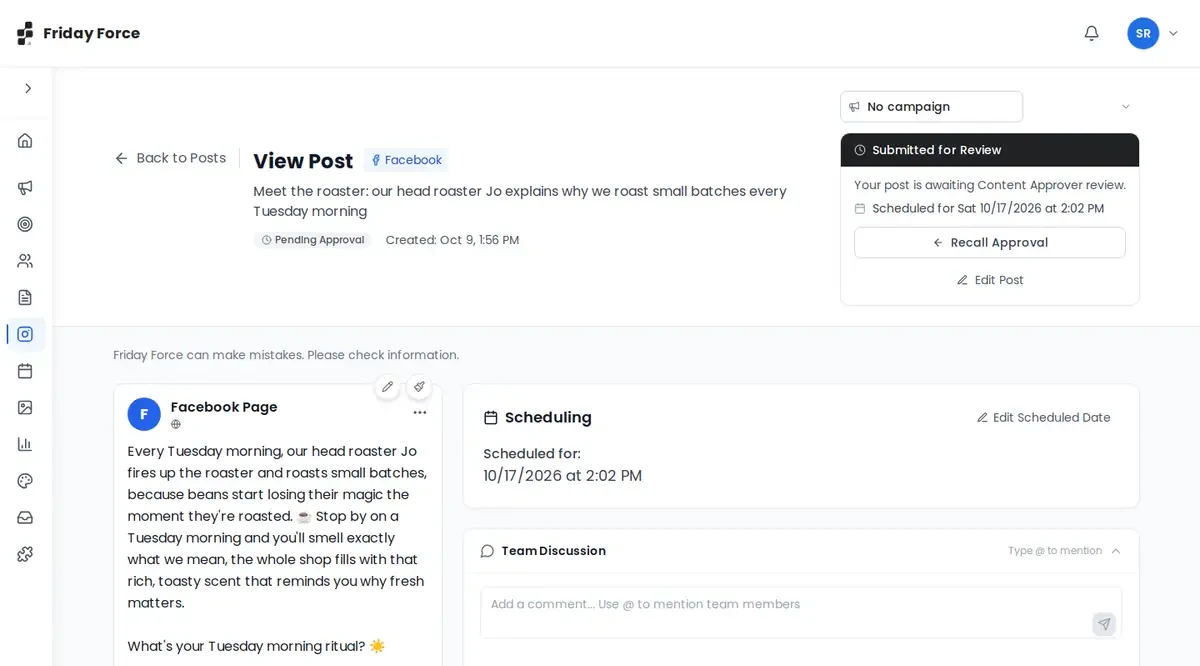
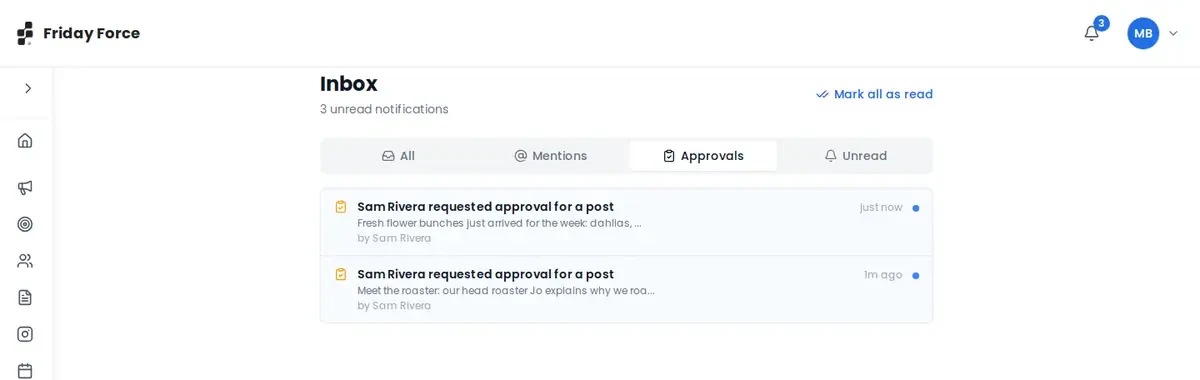
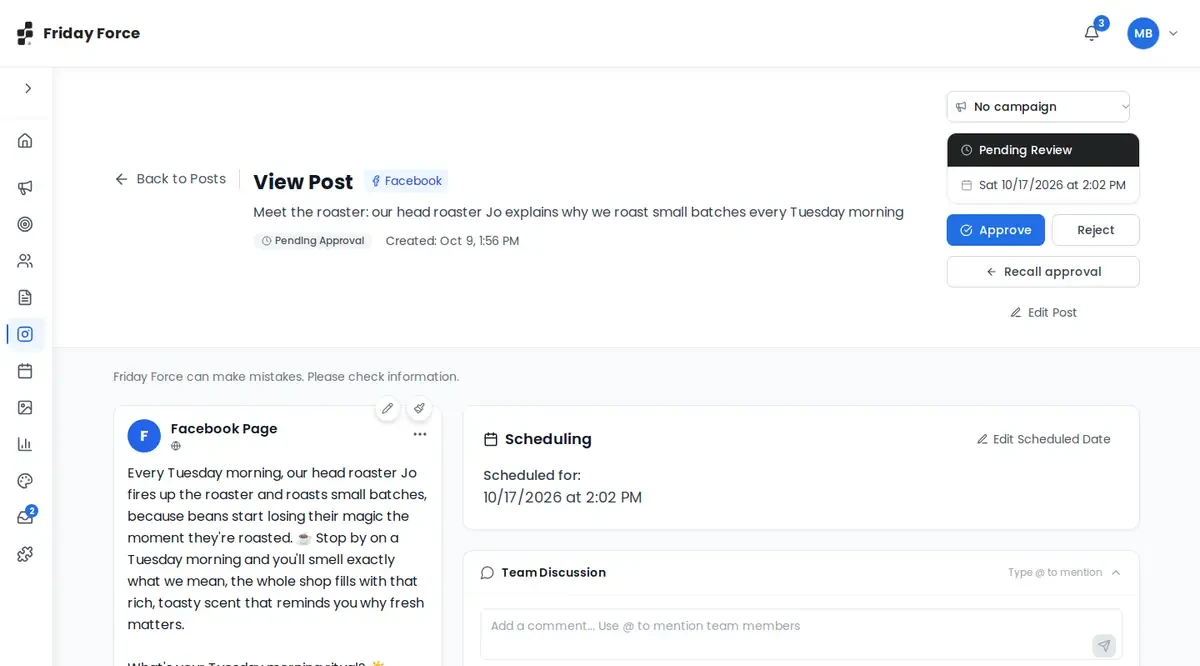
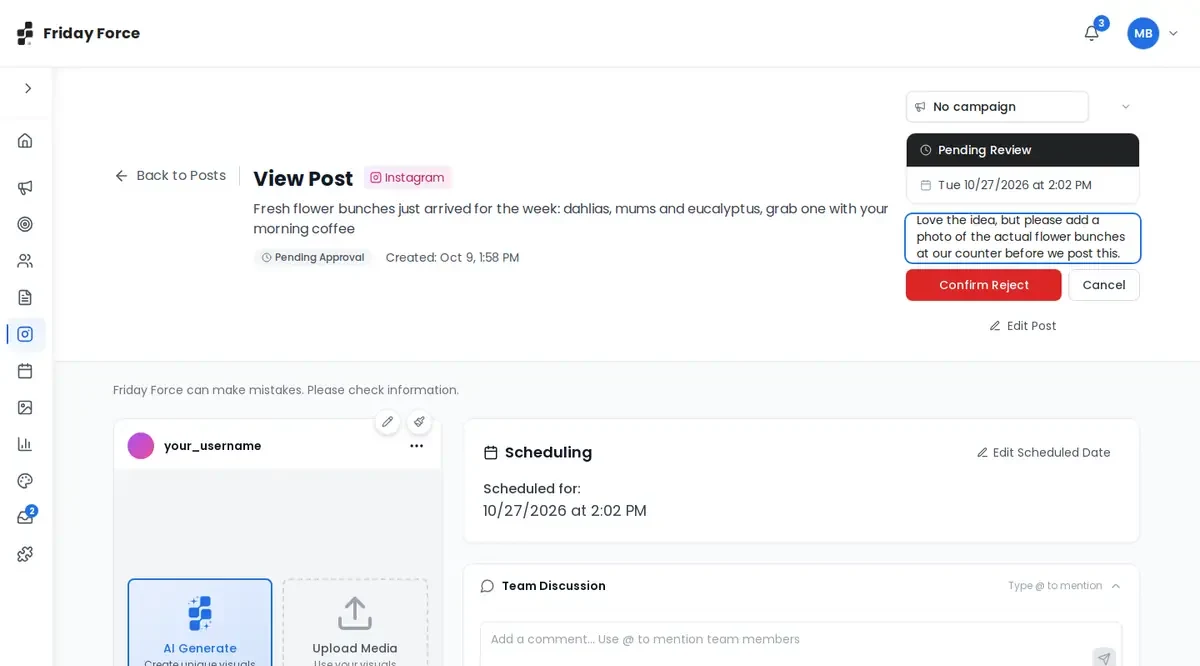
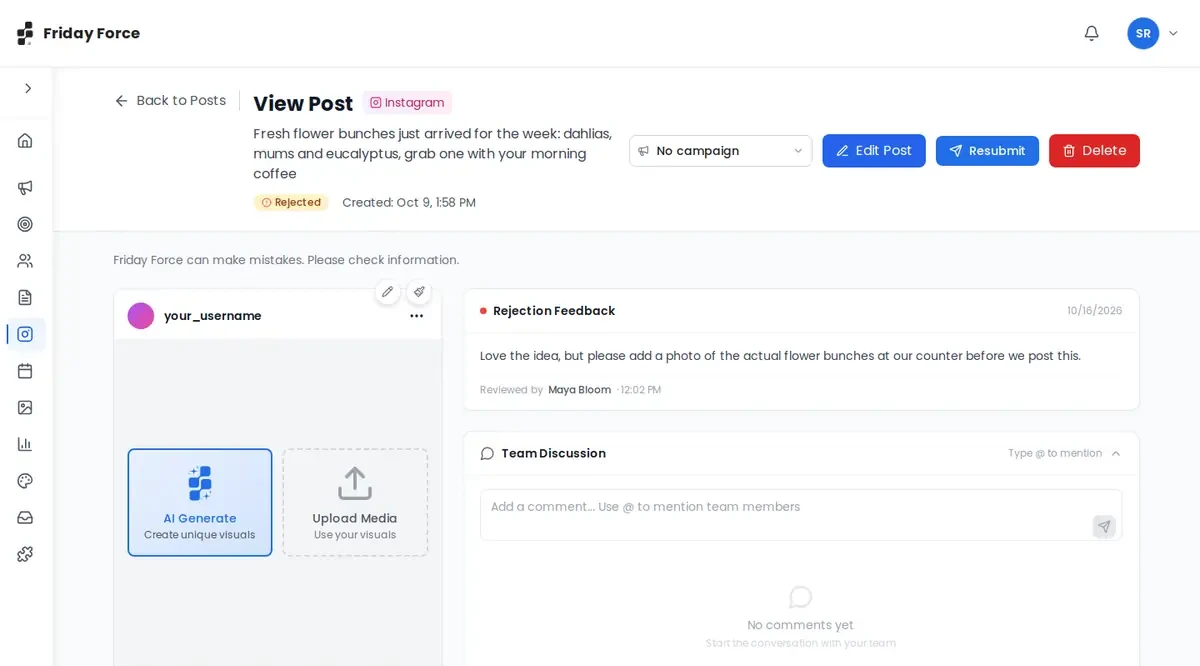
Who is an approver? Owners, by default, plus anyone given the Content Approver permission in Team Management. It’s a setting for each person, not a role. If the post’s time has already passed when it’s approved, Friday Force asks whether to publish it now or pick a new date.
Discuss posts with your teamBusiness and above
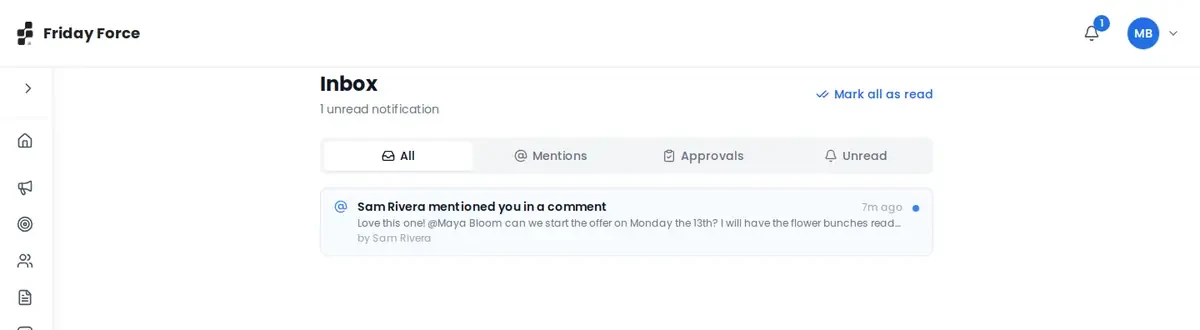
Next to each post, your team can comment in Team Discussion. Type @ to mention a colleague. Everything that needs you (mentions, replies and approval requests) appears in your Inbox. Click an item to go to the post.
Your account
To change your name, photo, email or password, open My Account from your initials. It also lists every workspace you belong to. Owners can delete a workspace there without deleting their own account.
Screens were captured in October 2026 and may differ slightly from the current app. They show a made-up business, Bean & Bloom Coffee.
Still stuck? Ask the support team.